How to screenshot a video without the play bar
Get a clean, full-quality still from any video in your browser: no play button, no progress bar, no cursor. Copied and ready to paste in one press.
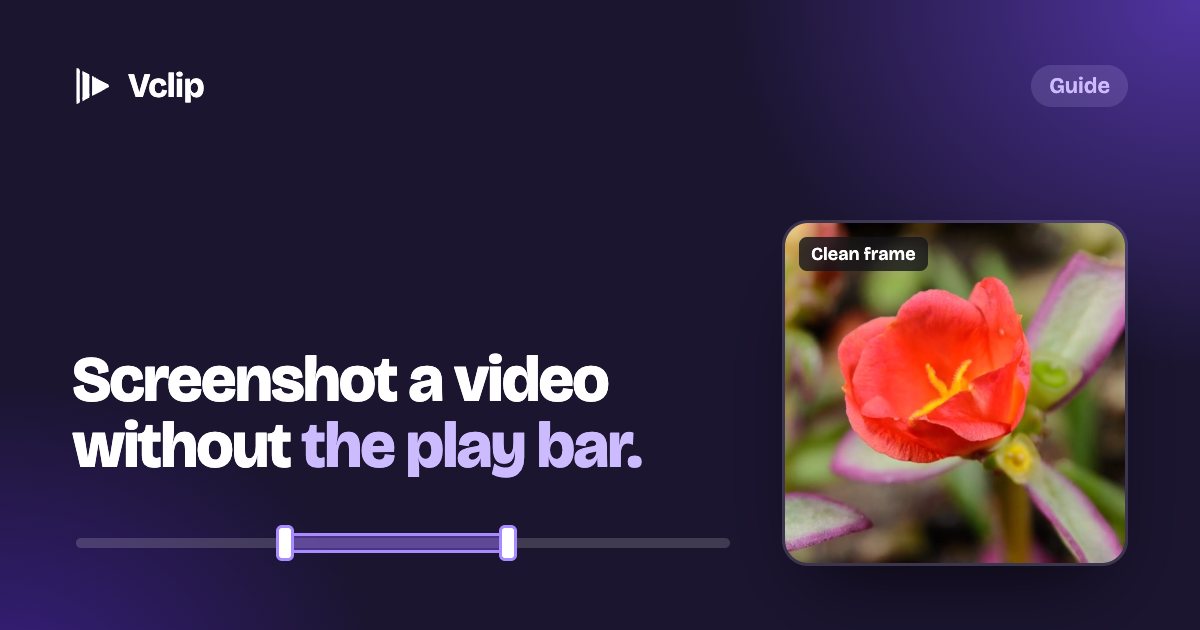
Pause a video to grab a still, take a screenshot, and you usually get more than you wanted: the play button, the progress bar, the volume icon, your mouse pointer, sometimes a title across the top. Then you crop it, and it comes out smaller and softer than the video looked.
There's a cleaner way.
Why normal screenshots look wrong
A normal screenshot copies your screen, not the video. So it catches everything drawn on top of the video, and it's only as sharp as the video's size on your screen. A small player gives you a small picture.
The clean way: take the frame itself
Vclip takes the screenshot from the video itself, so you get the frame with nothing on top, at the video's own quality.
- Play the video and pause on the moment you want. On YouTube, the , and . keys step back and forward one frame at a time while paused, which helps you land on the exact frame.
- Press Option+P on a Mac (Alt+P on Windows and Chromebook), or open Vclip's panel and click Screenshot.
- That's it: the picture is copied. Paste it straight into a chat, an email or a document with ⌘V (Ctrl+V).
Every screenshot is also kept in My Clips, with the page it came from and the moment in the video, and a copy is saved to your Downloads › Vclip folder.
Without Vclip
If you'd rather not install anything:
- Wait for the controls to hide. Many players, including YouTube, hide the play bar after a few seconds if the mouse doesn't move. Keep the pointer still, then take the screenshot.
- Go full screen first. A bigger picture on screen means a sharper screenshot.
- Grab just the video's area. On a Mac, ⌘ Shift 4 lets you drag a box around the picture. On Windows, Windows key + Shift + S does the same.
These get you close, but the result still depends on your screen. Taking the frame from the video gets you the real thing.
Good to know
Paid streaming services like Netflix and Disney+ protect their videos, so screenshots of them come out black, whichever way you take them. Vclip tells you when a site does this. And as with clips, only share what you have the right to share.