How to clip part of a YouTube video for your WhatsApp Status
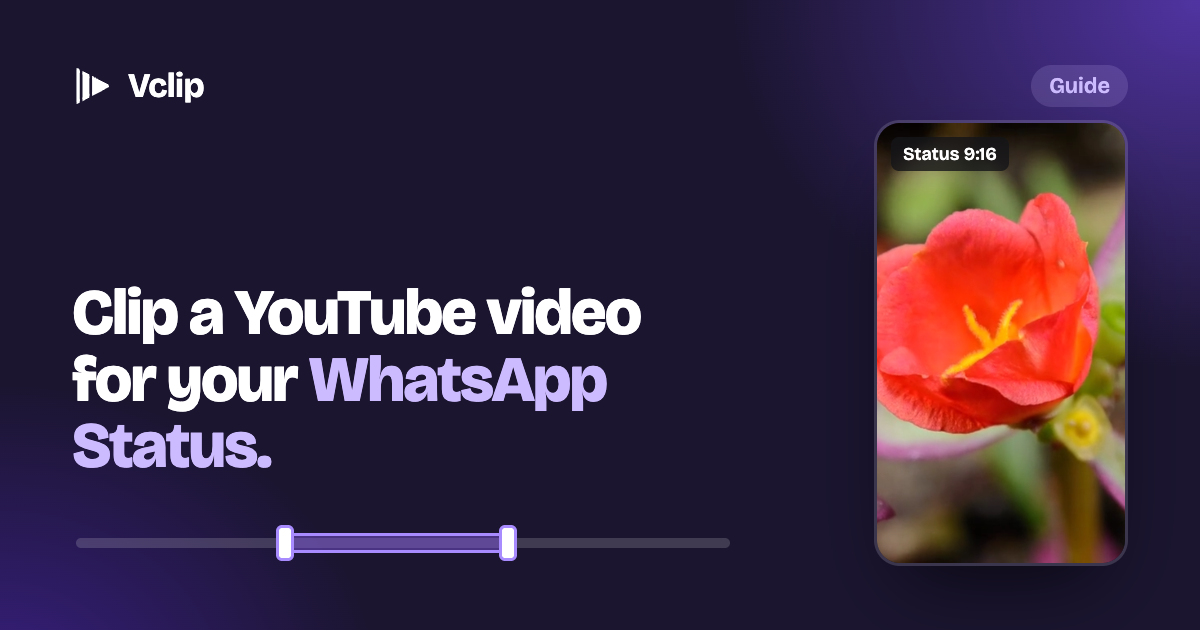
Save just the moment you want from a YouTube video, sized 9:16 for your WhatsApp Status, in about a minute. No screen recorder or editing app needed.
You're watching a video and ten seconds of it are perfect for your Status. The usual way to get them there takes four apps: record your screen, trim the recording, crop it to fit a phone, then export it. By the time you're done, the moment has passed.
Here's the quicker way: pin where the moment starts, pin where it ends, and save just that part, already shaped for a Status.
What you need
- A computer with Chrome, Edge, Brave or Arc
- Vclip, free, which adds the clipping tools to your browser
- WhatsApp on your phone
Step 1: Find the moment
Open the video on YouTube and play it. Pause just before the part you want, or let it play. Vclip works either way.
Step 2: Pin the start
Point at the video and click Clip, or press Option+I on a Mac (Alt+I on Windows and Chromebook). Vclip's panel opens and the start is pinned where the video is now. Missed it by a little? Use −1s and +1s to nudge it.
Step 3: Pin the end
Play on to where the moment ends and press Option+O (Alt+O), or click Now under End. The panel shows how long your clip is, so you can keep it short.
Step 4: Pick the Status size
Under Size, choose Status / Story (9:16). That's the tall shape a phone fills top to bottom. Then pick how to fit the video:
- Crop fills the whole Status. Drag the white frame on the video to choose what stays in.
- Fit keeps the whole picture and fills the space around it with a soft blur. Use it when Crop would cut off something important, like a face at the edge.
Step 5: Save
Click Save clip, or press Option+S (Alt+S). Vclip records the part you chose as it plays, so a 10-second clip takes 10 seconds. When it's done, the clip is in My Clips, and a copy goes to your Downloads › Vclip folder.
In an up-to-date browser, Vclip saves an MP4, the video format phones and WhatsApp play everywhere.
Step 6: Get it onto your phone
Pick whichever is easiest:
- Send it to yourself on WhatsApp. Open WhatsApp on your computer (the app or web.whatsapp.com), open the chat with yourself, and send the clip. On your phone, open that chat and save the video.
- AirDrop it from a Mac to an iPhone.
- Upload it to Google Drive or Google Photos, then open it on your phone.
Then open WhatsApp on your phone, go to Updates, add a Status, and choose your clip.
Tips for a better Status
- Keep it short. A Status is watched in a tap or two, and the best clips are a single moment.
- Check the crop before you save. Press Preview to watch exactly what will be saved.
- Credit the creator. Only clip what you have the right to share, and mention whose video it is.
The short version
Pin the start, pin the end, pick Status, save. One clip, already shaped for your phone, without a screen recorder or an editing app.